Managing Media Block Groups
How to work with grouped card layouts used on landing pages.
Media Block Groups are used on landing pages to show a grid of cards that link to sub-pages. You’ll find them on the Services, Industry Sectors, Resources, and Documentation landing pages.
Where Media Block Groups Appear
Section titled “Where Media Block Groups Appear”| Page | What the Cards Show |
|---|---|
| Services Landing | Service categories (Air Freight, Sea Freight, etc.) |
| Industry Sectors Landing | Industry sectors (Agriculture, Oil & Gas, etc.) |
| Resources Landing | Resource types (Case Studies, Industry Reports, etc.) |
| Documentation Landing | Documentation categories (User Guides, etc.) |
Editing Cards in a Media Block Group
Section titled “Editing Cards in a Media Block Group”-
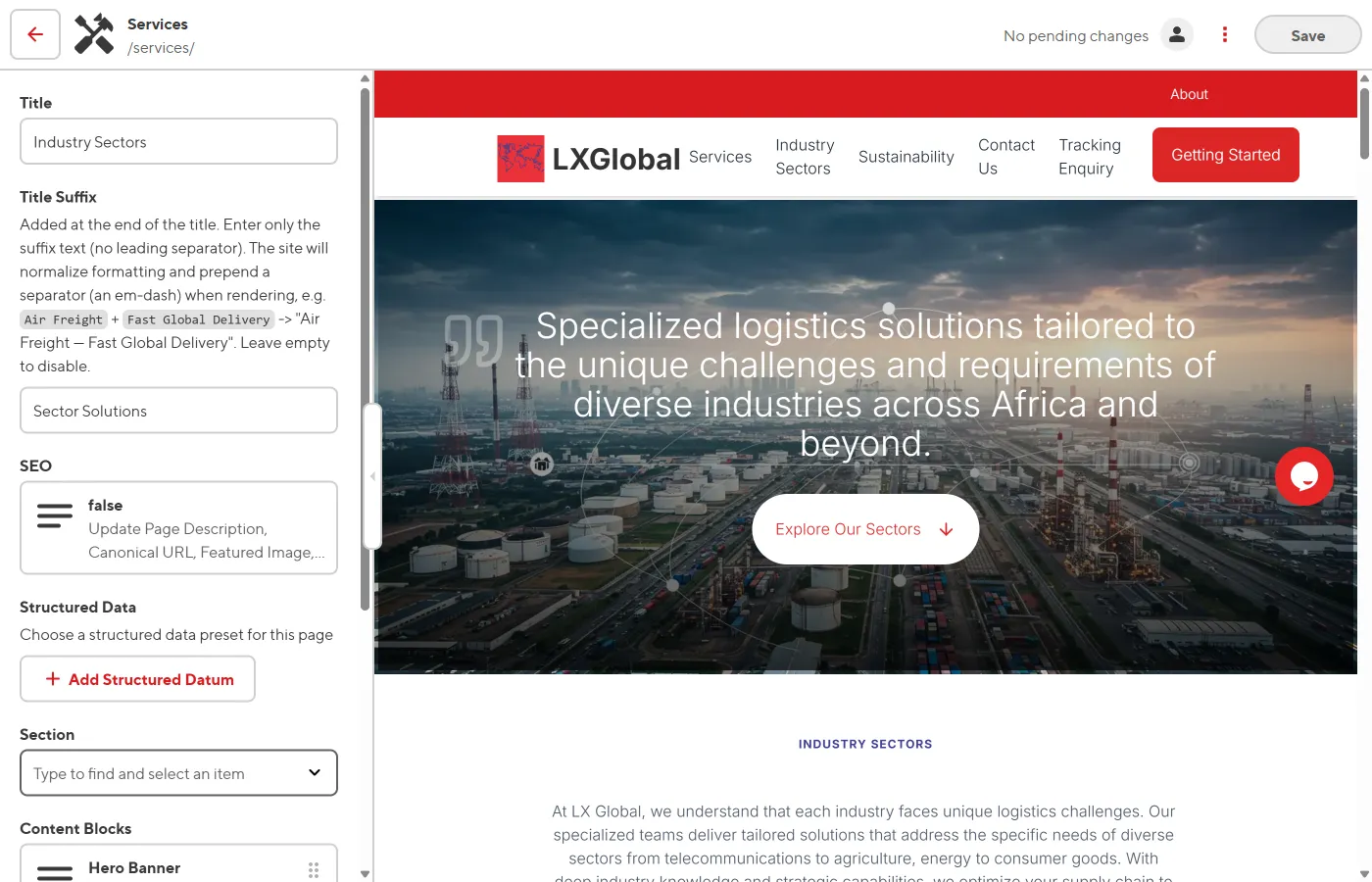
Open the landing page in the Visual Editor.
-
Click on the cards grid area in the preview.
-
In the sidebar, expand the Cards list.
-
Click on any card to see its fields:
- Title — Card heading
- Image — Card image
- Description — Short text
- Link — Destination URL
-
Edit the fields you want to change.
-
Click Save.
Adding a New Card
Section titled “Adding a New Card”-
In the sidebar, click + Add in the Cards list.
-
Fill in the title, image, description, and link.
-
Click Save.
Reordering Cards
Section titled “Reordering Cards”-
In the sidebar Cards list, drag cards up or down using the handle.
-
The preview updates to show the new order.
-
Click Save.