Editing Service Cards
How to add, edit, and manage service cards on LXGlobal pages.
Service Cards Grids display a grid of cards linking to individual services or related pages. They appear on service landing pages, industry sector pages, and more.
Service Card Fields
Section titled “Service Card Fields”Each card in the grid has these fields:
| Field | What It Does | Example |
|---|---|---|
| Title | Card heading | ”Air Cargo” |
| Image | Card thumbnail image | Photo of cargo plane |
| Description | Short description text | ”Fast, reliable air cargo…” |
| Link | Where the card links to | ”/services/air-freight/air-cargo/“ |
Editing an Existing Card
Section titled “Editing an Existing Card”-
Open the page in the Visual Editor.
-
Click on the Service Cards Grid section in the preview.
-
In the sidebar, expand the Service Cards list.
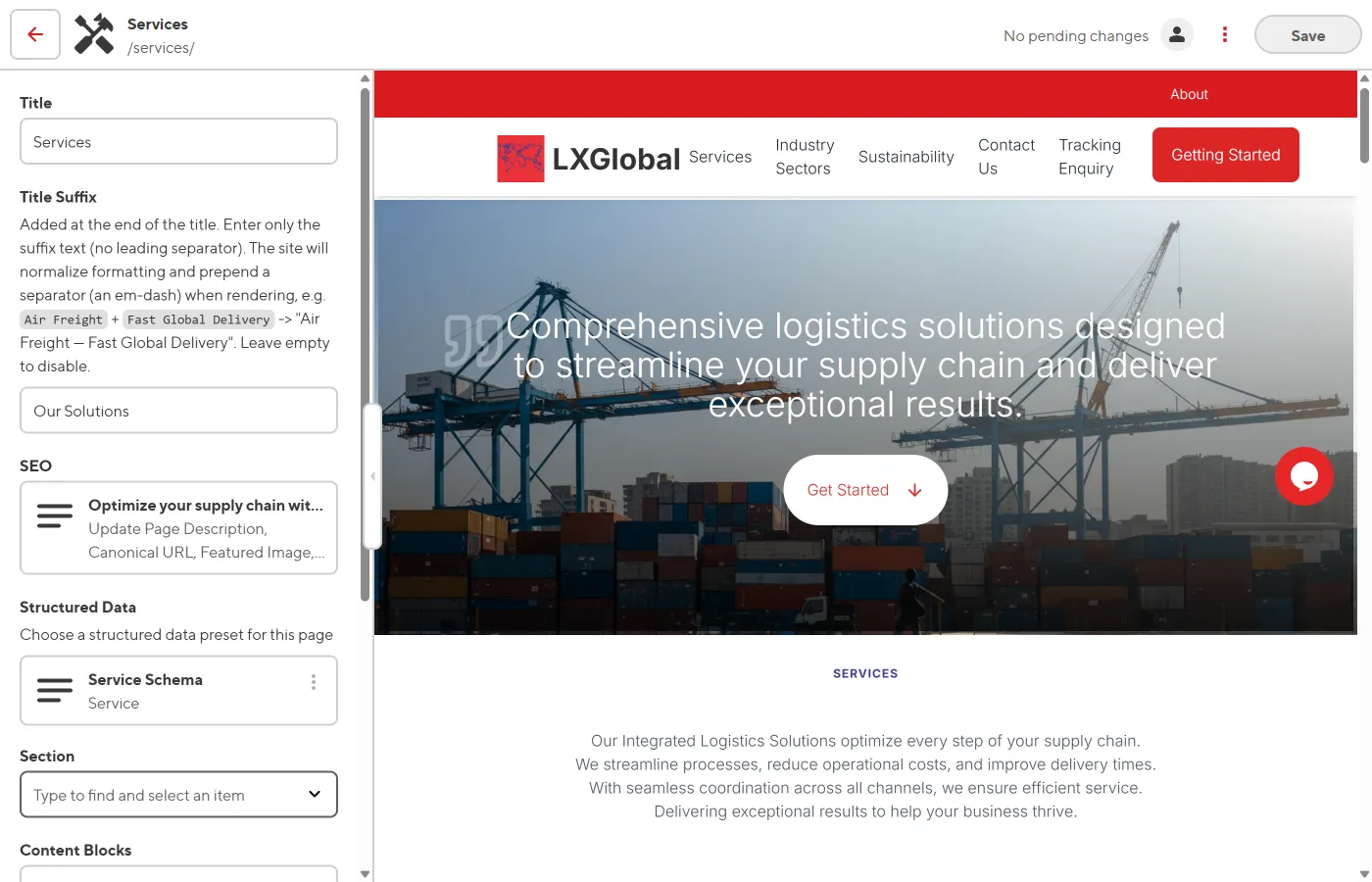
-
Click on the card you want to edit to expand its fields.
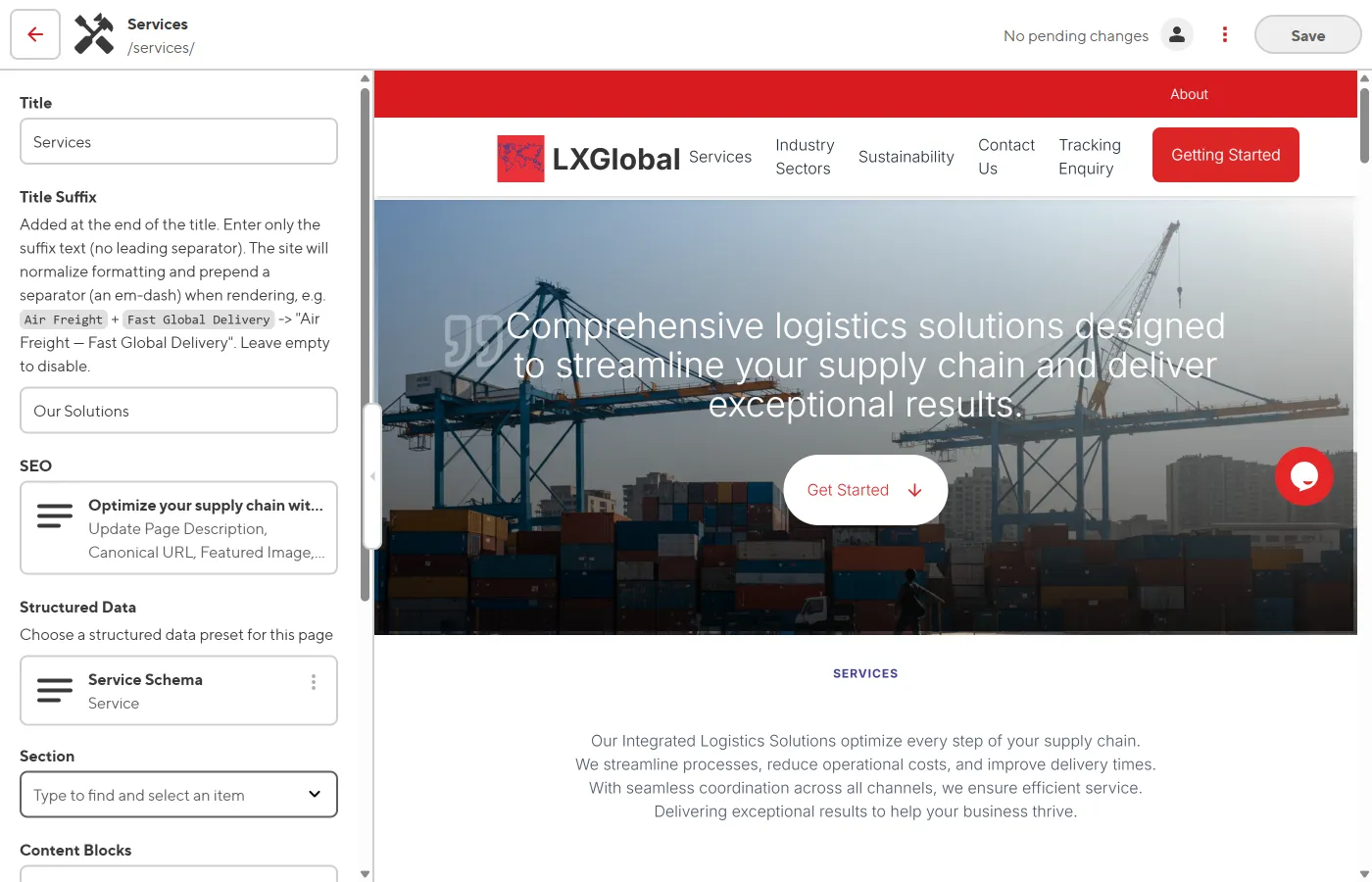
-
Update the Title, Description, Image, or Link as needed.
-
Click Save.
Adding a New Card
Section titled “Adding a New Card”-
In the sidebar, find the Service Cards list inside the Service Cards Grid block.
-
Click the + Add button.
-
Fill in the Title, Description, Image, and Link for the new card.
-
Click Save.
Removing a Card
Section titled “Removing a Card”-
In the sidebar, find the card in the Service Cards list.
-
Click the three-dot menu or x button next to the card.
-
Select Remove.
-
Click Save.