Creating an Industry Sector Page
Step-by-step guide to create a new industry sector detail page.
When LXGlobal expands into a new industry sector, you’ll need to create a detail page for it.
Before You Start
Section titled “Before You Start”You’ll need:
- The sector name and description
- A hero banner image
- A main content image
- Related sector cards info (for cross-linking)
Creating the Page
Section titled “Creating the Page”-
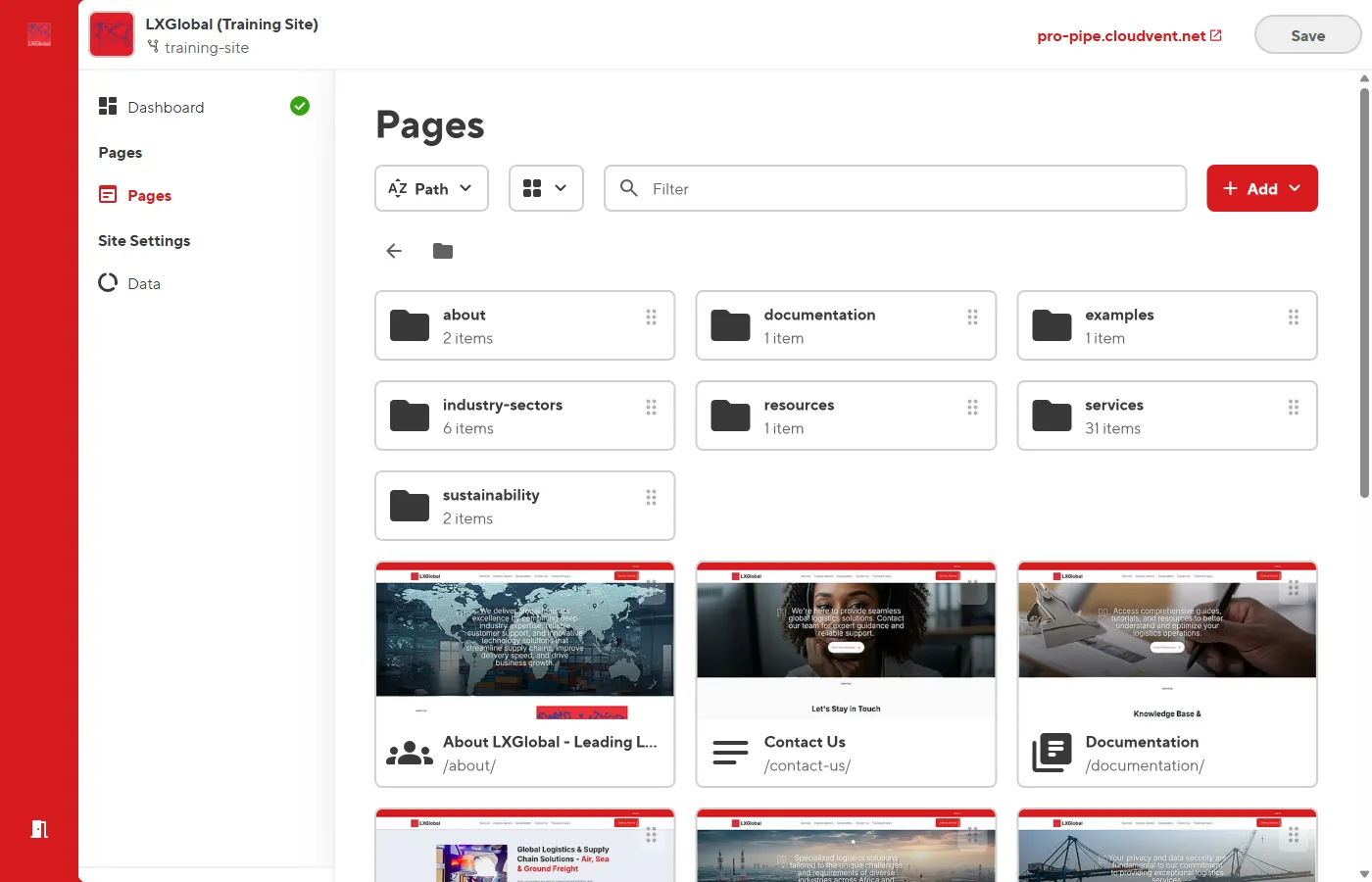
In the Dashboard, click Pages in the left sidebar.
-
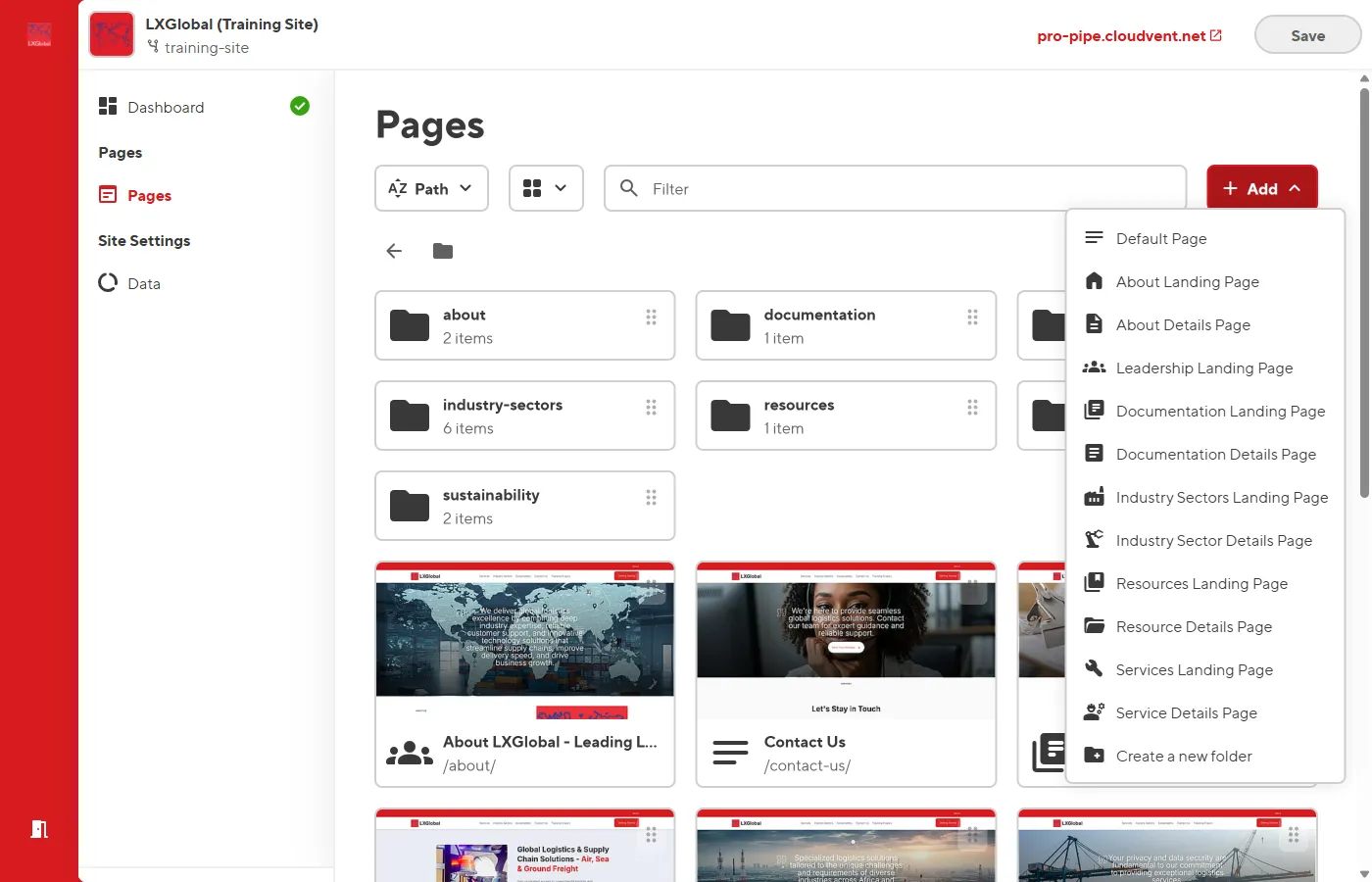
Click the + Add button.
-
Select Industry Sector Details Page from the template picker.
-
Enter:
- Title — The sector name (e.g., “Mining & Minerals”)
- File path — Under the Industry Sectors folder (e.g.,
industry-sectors/mining-minerals)
-
Click Create.
Filling In the Content
Section titled “Filling In the Content”The template creates these blocks:
1. Hero Banner
Section titled “1. Hero Banner”- Set Heading and Background image
- Optionally add a button
2. Media Block
Section titled “2. Media Block”- Add a breadcrumb (e.g., “Industry Sectors” →
/industry-sectors/) - Write the sector Body text with key logistics challenges and solutions
- Upload a relevant Image
3. Service Cards Grid
Section titled “3. Service Cards Grid”- Add cards for related sectors to encourage cross-navigation
- Typically 3-4 cards linking to other sector pages
4. Resources Banner
Section titled “4. Resources Banner”- Standard call-to-action banner
- Fill in all fields and click Save.
Don’t Forget
Section titled “Don’t Forget”After creating the page:
-
Update the Industry Sectors landing page — Add a card for the new sector in the Media Block Group (see Managing Media Block Groups).
-
Set SEO fields — Add Page description and set Section to Industry Sectors.