Creating a Service Page
Step-by-step guide to create a new service detail page.
When LXGlobal adds a new service, you’ll need to create a new Service Details page. Here’s how.
Before You Start
Section titled “Before You Start”You’ll need:
- The service name and description
- A hero banner image (at least 1920px wide)
- A main content image (at least 800px wide)
- Sub-service cards info (titles, images, descriptions, links) if applicable
Creating the Page
Section titled “Creating the Page”-
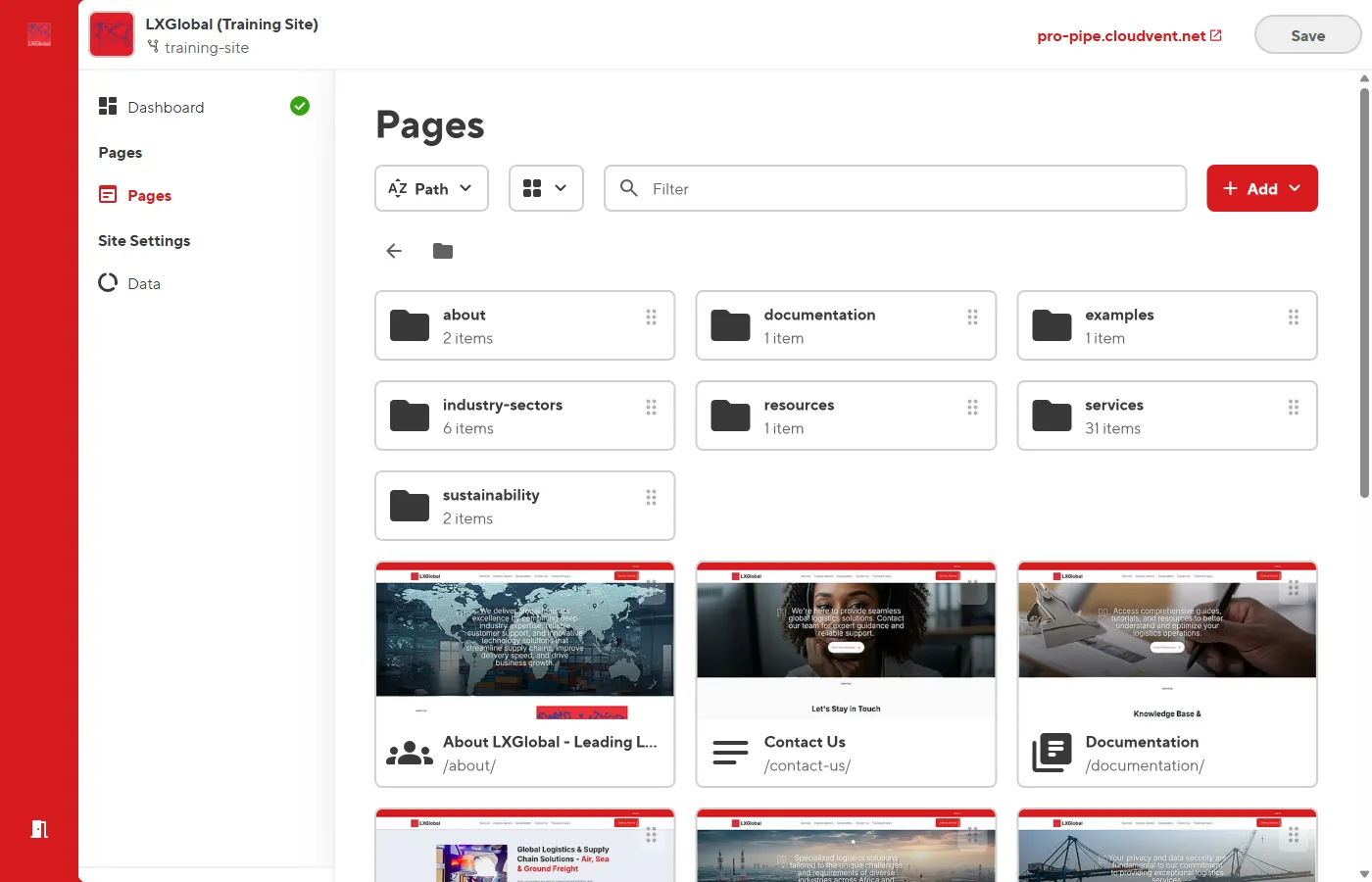
In the Dashboard, click Pages in the left sidebar.
-
Click the + Add button (top right of the pages list).
-
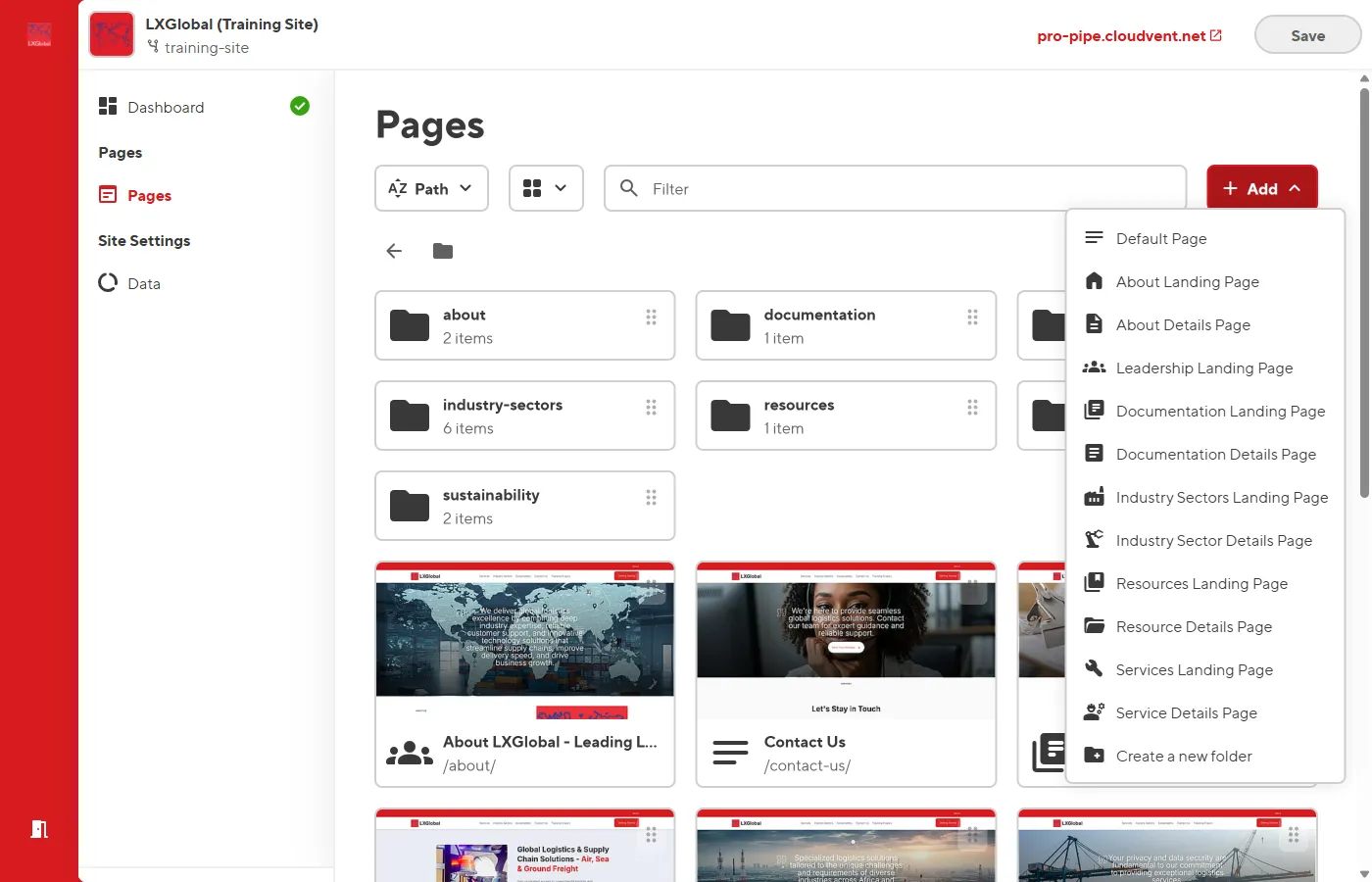
From the template picker, select Service Details Page.
-
Enter the page details:
- Title — The service name (e.g., “Ocean Freight”)
- File path — Set the path under the Services folder (e.g.,
services/ocean-freight)
-
Click Create to generate the page.
-
The page opens in the Visual Editor with empty content blocks ready to fill in.
Filling In the Content
Section titled “Filling In the Content”The Service Details template creates a page with these blocks:
1. Hero Banner
Section titled “1. Hero Banner”- Set the Heading (service name)
- Upload a Background image
- Optionally add a Quote text or button
2. Media Block (Main Content)
Section titled “2. Media Block (Main Content)”- Add a breadcrumb (e.g., “Services” linking to
/services/) - Set the Heading (service name)
- Write the Body text (service description, key features, etc.)
- Upload an Image and set Image description
3. Service Cards Grid (Sub-Services)
Section titled “3. Service Cards Grid (Sub-Services)”- Set a Heading (e.g., “Our Ocean Freight Services”)
- Add cards for each sub-service with Title, Image, Description, and Link
4. Resources Banner
Section titled “4. Resources Banner”- Set a Heading and Subheading
- Configure the Button text and Button link (e.g., “Request a Quote” linking to
/contact-us/)
-
Fill in each block’s fields in the sidebar.
-
Click Save when you’re done.
SEO Fields
Section titled “SEO Fields”Don’t forget to fill in the SEO fields in the sidebar:
- Page description — A 150-160 character summary for search engines
- Featured image — The image shown when the page is shared on social media
- Section — Set to Services