Editing Text & Headings
How to update text content and headings on LXGlobal pages.
Most of the text on the LXGlobal website lives inside Text Blocks and Media Blocks. Here’s how to edit them.
Inline Text Editing
Section titled “Inline Text Editing”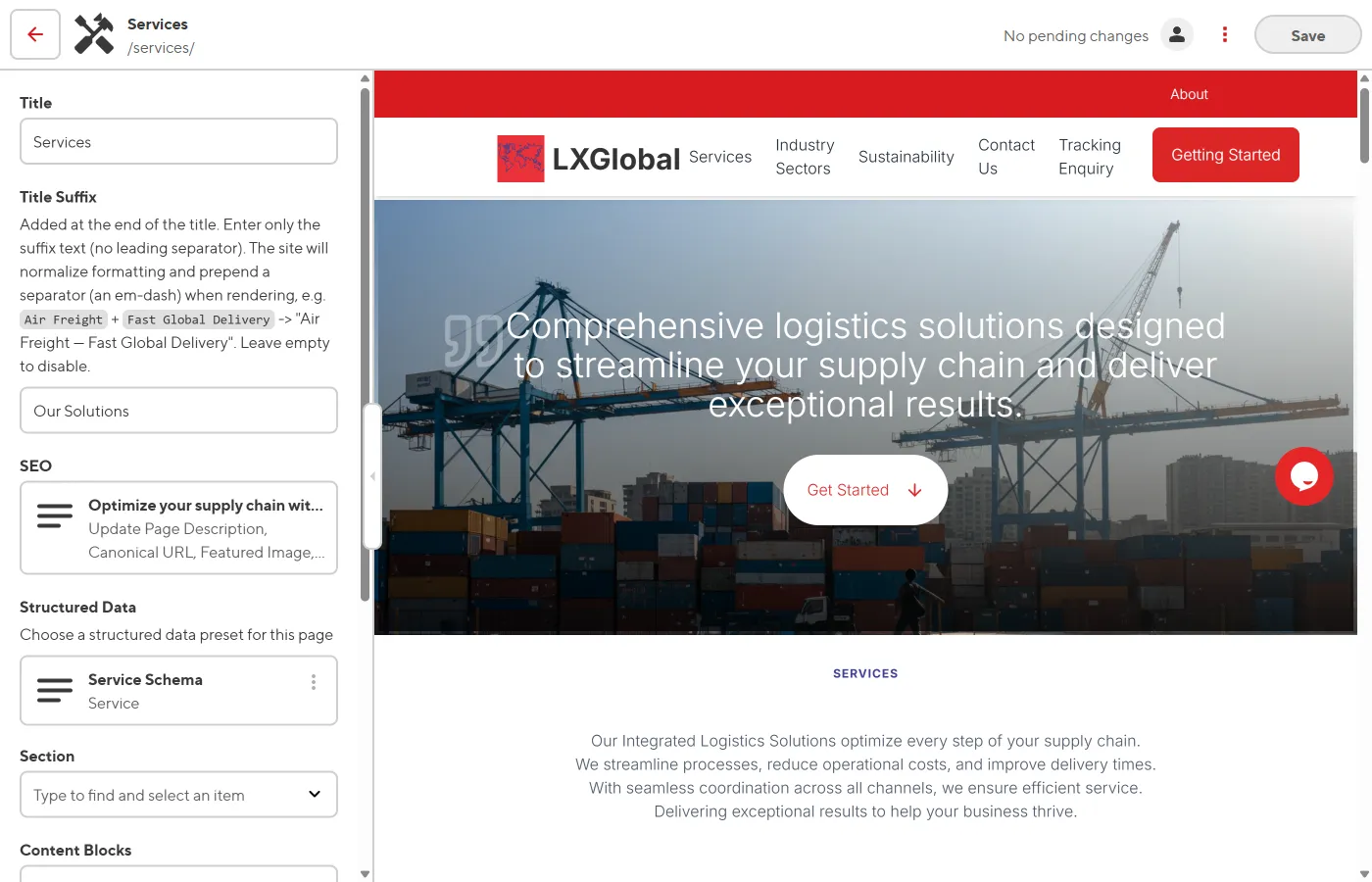
Several sections support clicking directly on text to edit it:
Text Block
Section titled “Text Block”The Text Block section displays a heading and body content. Both are editable inline.
-
Open the page in the Visual Editor.
-
Hover over the heading or body text — it will be highlighted.
-
Click to start editing. Make your changes directly on the page.
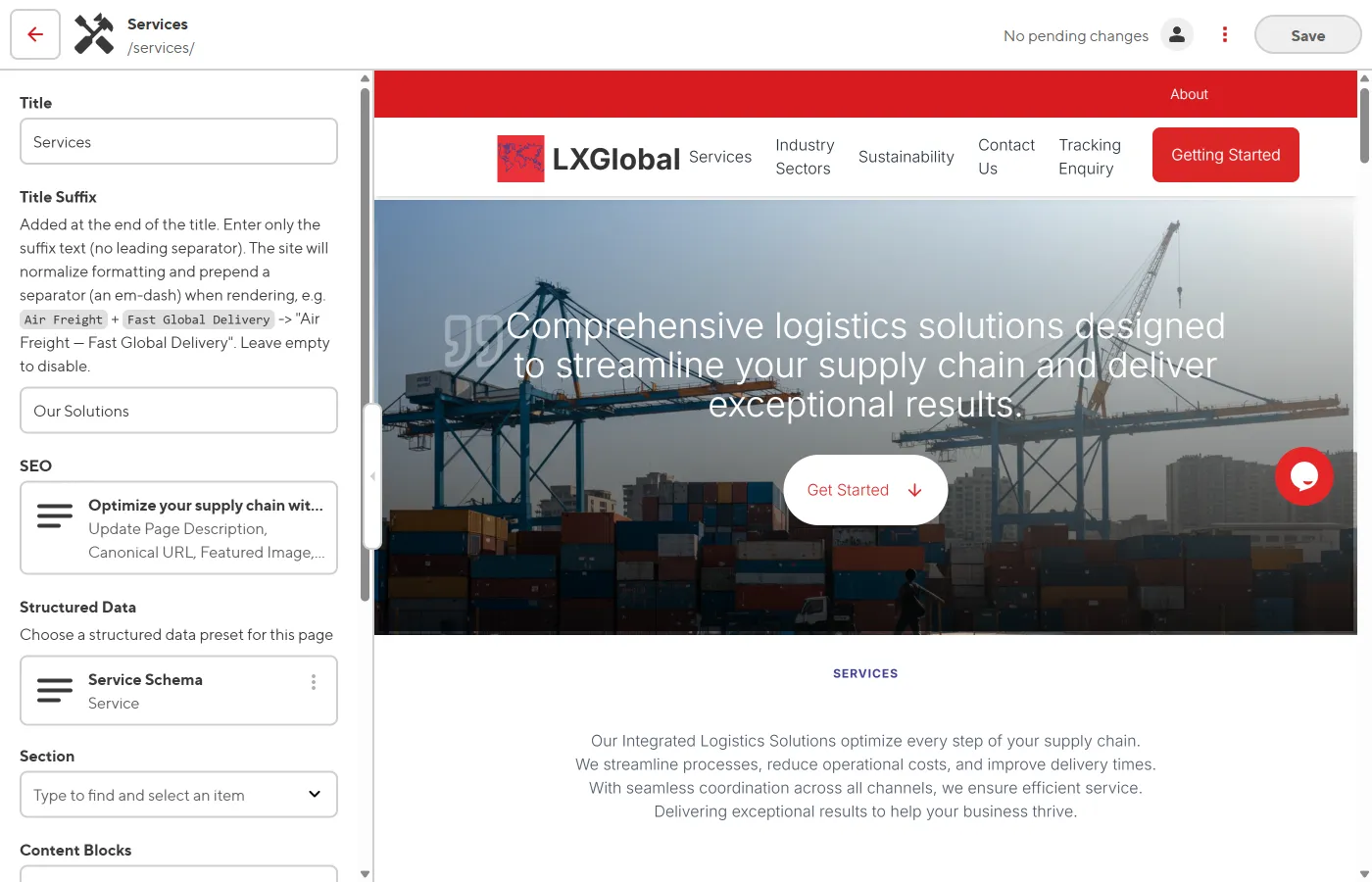
-
Click Save when done.
Media Block
Section titled “Media Block”Media Blocks show text alongside an image. The heading and content areas are both inline-editable.
-
Hover over the text area in the Media Block (not the image side).
-
Click the heading or body text to edit.
-
The content field supports rich text — you can use bold, italic, links, and lists.
-
Click Save when done.
Editing via the Sidebar
Section titled “Editing via the Sidebar”Some text fields can only be edited through the sidebar panel:
-
Click on the content block in the preview to select it.
-
The sidebar on the left will show all fields for that block.
-
Find the text field you want to change and edit it in the sidebar.
-
The preview updates in real time as you type.
Heading Styles
Section titled “Heading Styles”Headings in Text Blocks and Media Blocks have a style option that controls their size:
| Style | Result | Use When |
|---|---|---|
page-title | Large page heading (H2) | Main section title |
subheading | Medium heading (H3) | Sub-section title |
| (default) | Standard heading (H2) | General use |