Opening the Visual Editor
How to use CloudCannon's Visual Editor to see and edit your pages.
The Visual Editor is your main tool for editing pages. It shows a live preview of the page exactly as visitors will see it, with editable areas highlighted for you.
What the Visual Editor Looks Like
Section titled “What the Visual Editor Looks Like”
When you open a page, you’ll see three key areas:
- The Preview (center) — A live rendering of the page. Editable areas are highlighted when you hover over them.
- The Sidebar (left side) — Shows structured data fields for the current page or content block. This is where you edit fields that can’t be clicked on directly.
- The Toolbar (top) — Contains the Save button, page settings, and navigation.
How to Open the Visual Editor
Section titled “How to Open the Visual Editor”-
From the Dashboard, click Pages in the left sidebar.
-
Navigate to the page you want to edit.
-
Click the page name — it will open directly in the Visual Editor.
Two Ways to Edit
Section titled “Two Ways to Edit”The Visual Editor gives you two ways to make changes:
Inline Editing (Click on the Page)
Section titled “Inline Editing (Click on the Page)”Some elements can be edited by clicking directly on them in the preview. When you hover over an editable element, it will be highlighted. Click to start typing.
What you can edit inline:
- Headings and text in Text Blocks
- Headings and content in Media Blocks
- Heading and subheading in Resource Banners
- Hero title and subtitle on the Homepage
Sidebar Editing (Left Panel)
Section titled “Sidebar Editing (Left Panel)”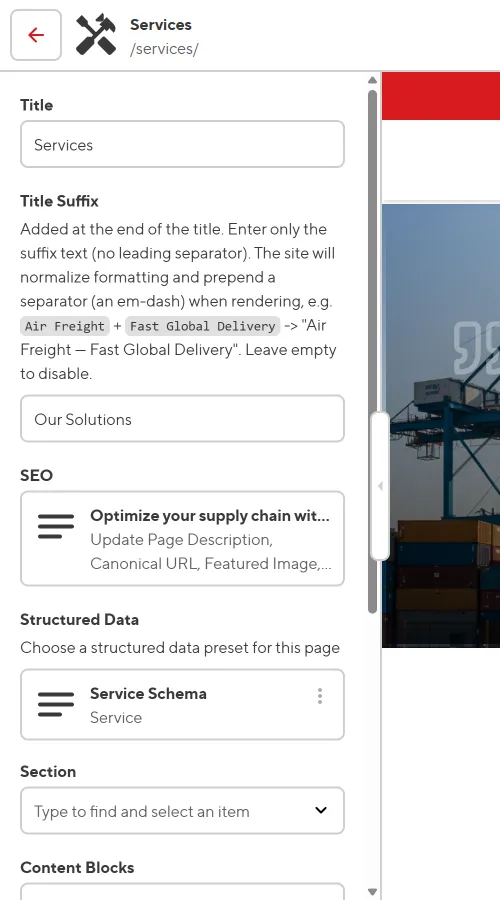
For everything else, use the sidebar on the left. This is especially useful for:
- Adding or removing items from lists (service cards, profiles, etc.)
- Changing images
- Editing links and button URLs
- Configuring layout options (colors, alignment, spacing)
Next: Your First Edit →